Salvus

Install the app – only needed once

Without the app your iPhone cannot notify you when it is your turn to drive to loading. Installing takes about 20 seconds.

✓ Selected to match your device. Something wrong? Choose your device and browser above.

  1. 1

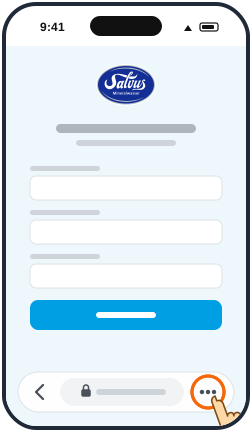
    Tap “•••” at the bottom right. If you see the Share icon (square with arrow) instead, tap it and skip step 2.

  2. 2

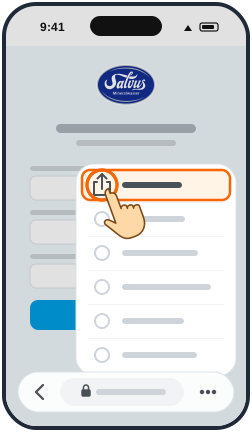
    Tap “Share”.

  3. 3

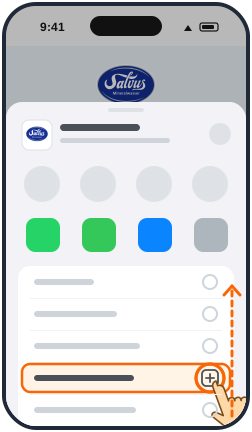
    Swipe the list up and tap “Add to Home Screen” (icon: square with a plus).

  4. 4

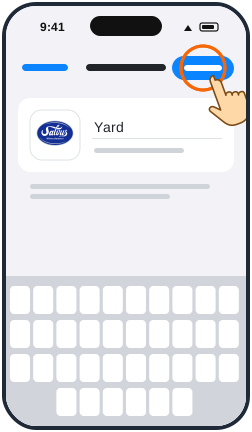
    “Open as Web App” must be switched on (green) ①. Then tap “Add” at the top right ②.

  5. 5

    Done! Close this page and open Yard Manager using the new “Yard” icon on your home screen. Check in there and allow notifications.

  1. 1

    Tap the Share icon at the bottom centre (square with an arrow pointing up). On an iPad it is at the top right.

  2. 2

    Swipe the list up and tap “Add to Home Screen” (icon: square with a plus).

  3. 3

    Tap “Add” at the top right.

  4. 4

    Done! Close this page and open Yard Manager using the new “Yard” icon on your home screen. Check in there and allow notifications.

  1. 1

    Tap the Share icon on the right of the address bar at the top.

  2. 2

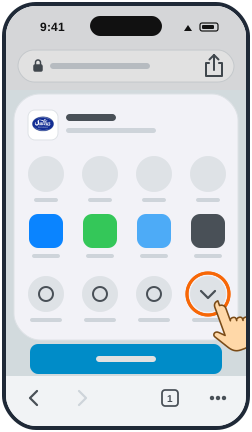
    Tap “Show More” – the round button with the downward arrow on the far right of the bottom row.

  3. 3

    In the expanded list, tap “Add to Home Screen” (icon: square with a plus). Swipe the list up if needed.

  4. 4

    If shown, leave “Open as Web App” switched on ①. Then tap “Add” at the top right ②.

  5. 5

    Done! Close this page and open Yard Manager using the new “Yard” icon on your home screen. Check in there and allow notifications.

  1. 1

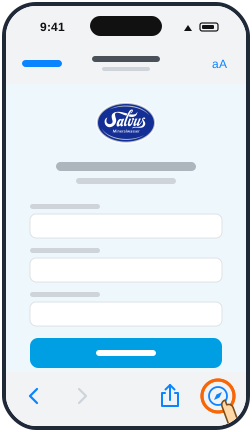
    This page is open inside another app (e.g. WhatsApp or Mail) – it cannot be installed from there. Tap the Safari icon (compass) at the bottom right. No compass? Tap “•••” at the top right and choose “Open in Safari” or “Open in browser”.

  2. 2

    Then follow the Safari instructions in Safari.

  1. Installing works most reliably with Safari: copy the link, open Safari, paste the link into the address bar and follow the Safari instructions.

  1. Your iPhone runs an iOS version that is too old – notifications require iOS 16.4 or later. Please update under Settings › General › Software Update and then open this page again.

  1. No installation is needed on Android phones – notifications work directly in the browser. Just go to check-in and allow notifications when asked.

Open the app

Close this page and open Yard Manager using this icon on your home screen. Notifications only work there.

Salvus Logo

Registration

No Timewindows booked?

Proceed without Timewindow

Install the app

Add Yard Manager to your home screen. Only then will you be notified when it is your turn to drive to loading – even when the browser is closed.

Install the app

✓ Selected to match your device. Something wrong? Choose your device and browser above.

  1. 1

    Tap “•••” at the bottom right. If you see the Share icon (square with arrow) instead, tap it and skip step 2.
  2. 2

    Tap “Share”.

  3. 3

    Swipe the list up and tap “Add to Home Screen” (icon: square with a plus).
  4. 4

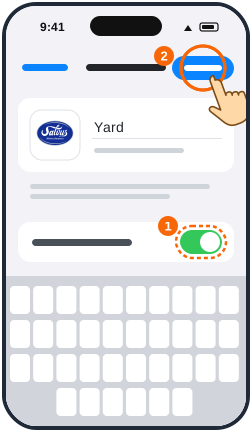
    “Open as Web App” must be switched on (green) ①. Then tap “Add” at the top right ②.
  5. 5

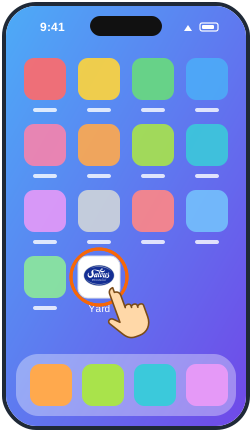
    Done! Close this page and open Yard Manager using the new “Yard” icon on your home screen. Check in there and allow notifications.
  1. 1

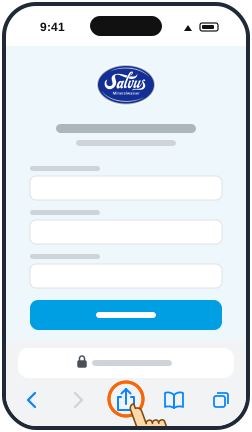
    Tap the Share icon at the bottom centre (square with an arrow pointing up). On an iPad it is at the top right.
  2. 2

    Swipe the list up and tap “Add to Home Screen” (icon: square with a plus).

  3. 3

    Tap “Add” at the top right.

  4. 4

    Done! Close this page and open Yard Manager using the new “Yard” icon on your home screen. Check in there and allow notifications.

  1. 1

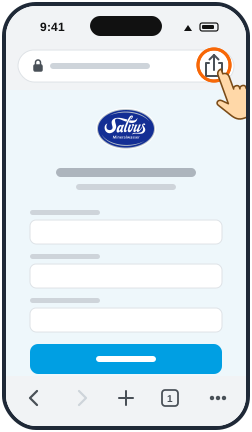
    Tap the Share icon on the right of the address bar at the top.
  2. 2

    Tap “Show More” – the round button with the downward arrow on the far right of the bottom row.
  3. 3

    In the expanded list, tap “Add to Home Screen” (icon: square with a plus). Swipe the list up if needed.

  4. 4

    If shown, leave “Open as Web App” switched on ①. Then tap “Add” at the top right ②.

  5. 5

    Done! Close this page and open Yard Manager using the new “Yard” icon on your home screen. Check in there and allow notifications.

  1. 1

    This page is open inside another app (e.g. WhatsApp or Mail) – it cannot be installed from there. Tap the Safari icon (compass) at the bottom right. No compass? Tap “•••” at the top right and choose “Open in Safari” or “Open in browser”.
  2. 2

    Then follow the Safari instructions in Safari.

  1. Installing works most reliably with Safari: copy the link, open Safari, paste the link into the address bar and follow the Safari instructions.

  1. Your iPhone runs an iOS version that is too old – notifications require iOS 16.4 or later. Please update under Settings › General › Software Update and then open this page again.

  1. No installation is needed on Android phones – notifications work directly in the browser. Just go to check-in and allow notifications when asked.